Command Line Primer
The Big Idea
The command line is your direct line to your computer. Every developer uses it. By the end of this primer, you will be able to navigate your file system, create folders and files, and open your work in VS Code — all without touching a mouse.
Your Roadmap
| Section | Time | Required? |
|---|---|---|
| Understand | 5 min | ⚑ Required |
| See it in action | 15 min | ⚑ Required |
| Give it a try | 45 min | ⚑ Required |
| Open VS Code from the terminal | 10 min | ⚑ Required |
| Check your understanding with a chatbot | 15 min | ⚑ Required |
| Reflect | 15 min | ⚑ Required |
| Go further | Open | ◎ Optional |
Understand
What is the command line?
The command line (also called the terminal or shell) is a text-based way to talk to your computer. Instead of clicking through folders and menus, you type short commands and your computer responds immediately.
Why learn it now?
Almost every developer tool — Git, Node, package managers — runs from the command line. Learning it early means you won't have to learn it later while also juggling new programming concepts. The investment pays off quickly.
What you will be able to do by the end:
- Identify where you are in your file system
- Create your workspace folder
- Navigate between folders
- Open your work in VS Code
See it in action
Command Line Primer (9 min)
This video uses a Mac. If you are on Windows or Linux, the commands are the same — only the visual appearance of the terminal differs.
Give it a try
Download: Command line cheat sheet — keep this open while you practise.
Which terminal should I use?
| Operating System | Use this tool |
|---|---|
| Mac | Terminal or iTerm2 |
| Windows | Windows Terminal with WSL — see the computer set-up guide |
| Linux/Ubuntu | Terminal |
How to open your terminal
| Operating System | How to open it |
|---|---|
| Mac | Press Command + Space, type Terminal or iTerm, press Enter |
| Windows | Press the Windows key, type Windows Terminal, press Enter |
| Linux/Ubuntu | Press Ctrl + Alt + T |
Note: GitHub Desktop exists, but we use the command line at Dev Academy. Using it directly builds the understanding you'll need throughout the programme.
The commands
Work through these one at a time. Type each command yourself — don't copy-paste.
pwd — Where am I?
Run pwd to print your current location (working directory).
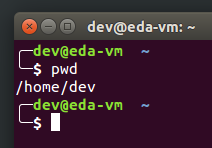
Figure 1: Running pwd shows your current location.
The prompt reappears after every command. That's your signal that the terminal is ready for the next instruction.
mkdir — Create a new folder
Run mkdir folder-name to create a new folder in your current location.
Before creating your workspace, check where you are:
pwd
You should see something like /home/your-name (Linux/Windows) or /Users/your-name (Mac). That's your home folder — the right place to create your workspace.
If you see a different location, run cd ~ to go back to your home folder first.
Now create your Dev Academy workspace folder:
mkdir workspace
This creates a folder called workspace inside your home folder. All your Dev Academy work will live here.
cd — Move between folders
Run cd folder-name to move into a folder. Run cd .. to move up one level (to the parent folder).
Move into your workspace folder:
cd workspace
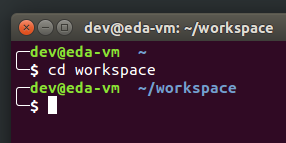
Figure 2: Your prompt updates to show your new location.
Notice your prompt has changed to show ~/workspace. The ~ is shorthand for your home folder — it always refers to your personal home folder, no matter where you are in the file system. So ~/workspace means "the workspace folder inside my home folder."
ls — What's in this folder?
Run ls to list the files and folders in your current location.
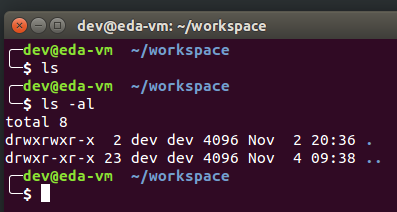
Figure 3: ls lists the contents of your current folder.
An empty folder will return nothing — that's expected.
◎ Optional: What does ls -al output mean?
The -l flag shows extra detail about each file. For example: drwxrwxr-x 2 dev dev 4096 Sep 26 22:27 .
d— this is a directoryrwx— the owner can read, write, and executer-x— other users can read or execute, but not writedev— the owner's username4096— file size in bytesSep 26 22:27— last modified date
You don't need to memorise this. It's here if you're curious.
touch — Create a new file
Run touch file-name to create a new empty file in your current location.
touch my-file.txt
This creates an empty text file in whatever folder you are currently in.
exit — Close the terminal
Run exit to close the terminal session.
How to know you've nailed it
| Level | You can... | ||
|---|---|---|---|
| 🪨 | Intro Climb | Run pwd, mkdir, touch, cd, and ls without checking the cheat sheet | ⚑ Required |
| 🧗 | Core Ascent | Create your workspace folder, navigate into it, and open it in VS Code with code . | ⚑ Required |
| 🏔️ | Summit | Navigate your whole file system confidently without a cheat sheet | ◎ Optional |
Most students will reach Core Ascent in this session. Summit is there if you have energy to spare.
Open Visual Studio Code from the Terminal
Run code . from any folder to open that folder in VS Code. This is a command you'll use every day.
code . # open the current folder in VS Codecode my-file-name.txt # open a specific file in VS Code
Set up the code command
Mac:
- Open VS Code
- Open the Command Palette: Command + Shift + P
- Type
Shell Command: Install 'code' command in PATHand select it
M1/M2 Mac: If
codeis not recognised after installing, open the Command Palette, uninstall thecodecommand, then reinstall it.
Windows:
The code command is installed automatically with VS Code.
Linux:
The code command is installed automatically with VS Code.
Check your understanding with a chatbot
This is not a one-shot prompt. Have a conversation to test what you have just practised.
Step 1 — Set the scene:
"I just practised basic command line commands for the first time. I want you to check my understanding by asking me questions — don't explain anything yet, just ask."
Step 2 — Answer in your own words. Don't look anything up. It's fine to say "I'm not sure."
Step 3 — Fill the gaps:
"Based on my answers, what's the one command I'm most unclear on? Explain just that one thing with a practical example."
Step 4 — Check your mental model:
"I think navigating the file system with the command line is like [your analogy]. Is that accurate? What does my analogy miss?"
Why this works: Retrieving from memory — even imperfectly — builds retention far more effectively than re-reading.
Reflect
Reflecting is how you move learning from short-term into long-term memory. Keep your reflection short and honest — a few sentences per question is enough. Reflections are for you, but they will also be read by your facilitator.
Keep note of where you keep your reflections as you'll be asked to use them in a later task.
Try using your new skills: Create a file for your reflections inside your workspace folder and open it in VS Code:
cd ~/workspacetouch reflections.txtcode .
If you're already inside your workspace folder, skip the cd line.
In your reflection file, answer these four questions:
- How would you describe the command line in plain English in a couple of sentences? Can you think of an analogy for it?
- Did you stick to the timebox guidelines? If not, what change would you make next time?
- Name five commands you used and what they do.
- Did you learn anything unexpected?
The Big Idea (revisited)
The command line is your direct line to your computer. You now know the core commands every developer uses daily: pwd, mkdir, touch, cd, ls, and code .. These will come up in every sprint from here on.
Go further
◎ Optional — come back to this when you have spare time, or if you finish early.
Try the stretch competencies for more command line practice.
Search for: Terminal cheatsheet, Command Line Basics, or Bash for beginners to find resources that match how you learn best.