Using HTML Elements
The Big Idea
Once you can find an element on the page, you can change it. JavaScript lets you update text, HTML content, and attributes — so your code can make the page respond to what users do.
Your Roadmap
| Section | Time | Required? |
|---|---|---|
| Change an element's text | 10 min | ⚑ Required |
| Change multiple elements with a loop | 10 min | ⚑ Required |
| Change an attribute | 10 min | ⚑ Required |
Change an element's text
For this lesson, keep the dom-lesson.html file open in Chrome from the previous lesson.
The innerHTML property lets you both read and set the content inside an element.
Try replacing the text in the first .dom span:
document.querySelector('.dom').innerHTML = 'HTML5 Document Object Model'

Figure 6: Only the first element with the '.dom' class has changed — querySelector always returns the first match.
This line does three things:
document.querySelector('.dom')— finds the first element with the classdom.innerHTML— targets its inner HTML content= 'HTML5 Document Object Model'— sets the new value
The second span is unchanged because querySelector only returns the first match.
Change multiple elements with a loop
To update all .dom spans at once, use querySelectorAll to get every matching element, then loop through them.
const spans = document.querySelectorAll('.dom')for (let i = 0; i < spans.length; i++) {spans[i].innerHTML = 'HTML5 Document Object Model'}
- Line 1 stores all
.domelements in a variable calledspans— this gives you a NodeList - Lines 2–4 loop through the NodeList and update each element's
innerHTML
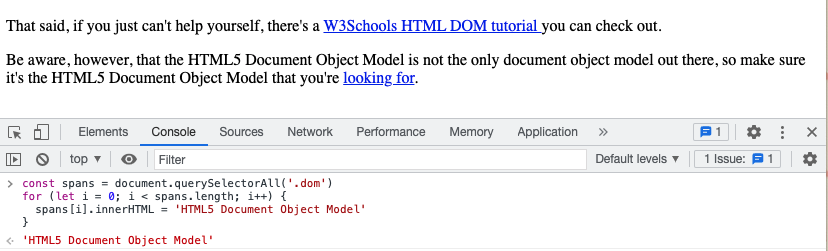
Figure 7: Both spans now show the updated text.
Why a for loop instead of .forEach()?
A NodeList looks like an array but is not one. That means you can't use array methods like .forEach() directly on it.
A for loop works on any list-like object, so it's the safe choice here.
(In modern browsers, NodeLists do support .forEach() — but a for loop works everywhere and keeps the behaviour predictable.)
Change an attribute
You can also change any HTML attribute using setAttribute. It takes two arguments: the attribute name and the new value.
Using the spans variable from above:
for (let i = 0; i < spans.length; i++) {spans[i].setAttribute('style', 'color: red; font-weight: bold')}
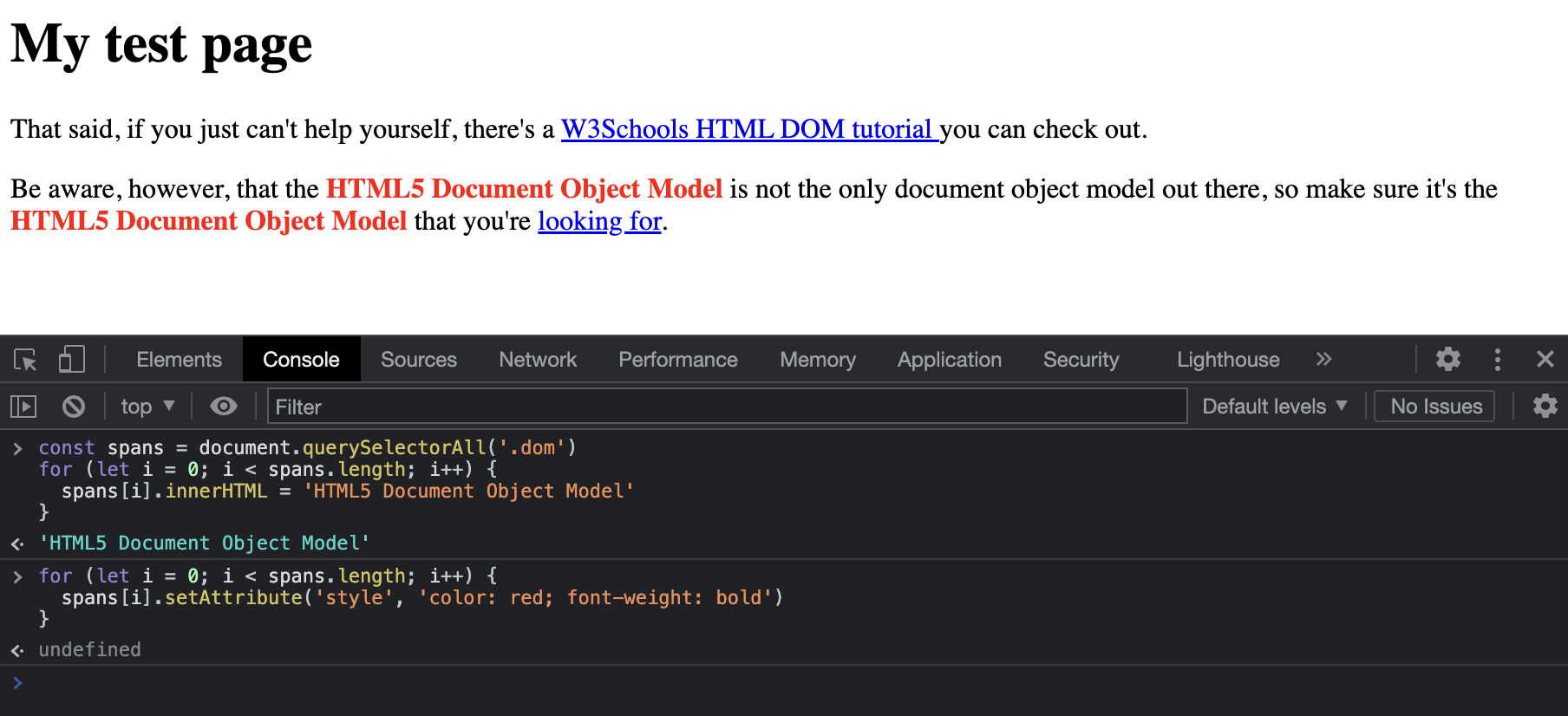
Figure 8: Both spans are now red and bold.
Here is what setAttribute does to the HTML:
Before:
<span class="dom">HTML5 Document Object Model</span>
After calling span.setAttribute('style', 'color: red; font-weight: bold'):
<span class="dom" style="color: red; font-weight: bold">HTML5 Document Object Model</span>
setAttribute adds or replaces the named attribute with the value you provide. You can use it to change src on an image, href on a link, or any other attribute.
How to know you've nailed it
| Level | You can... | ||
|---|---|---|---|
| 🪨 | Intro Climb | Use innerHTML to change the text of a single element and see the result in the console | ⚑ Required |
| 🧗 | Core Ascent | Loop through a NodeList with a for loop and update every matching element | ⚑ Required |
| 🏔️ | Summit | Use setAttribute to change an element's style or href, and explain what the two arguments do | ◎ Optional |
The Big Idea (revisited)
Once you can find an element, you can change it. Use innerHTML to update content, and setAttribute to change any HTML attribute. Use a for loop to apply changes to multiple elements at once.
Extra Resources
These are optional. Use them if you want to go deeper.